
Using FoCal Commercial
FoCal Commercial is for camera shops, repairers and calibration services who test other people's cameras and lenses. It has everything in FoCal Pro, plus tools for keeping track of whose kit you tested and giving them a record of the work:
- a customer prompt when you connect a camera, so its tests are recorded for that customer
- the Customers page, which groups tests into visits
- a job sheet for each visit, as a PDF to give to the customer
- your own logo on PDF reports
Customer names are stored only on your computer. They're never uploaded to Reikan, including with the anonymous results that build the FoCal Comparison Data.
Recording the customer
When you connect a camera, the Camera page shows a Customer (optional) card. Type the customer's name and click Use this name, or choose No name if you don't need one (for example, testing your own kit). Every test you run on that camera is then recorded for that customer, until you disconnect it or click Change.
If you've tested the camera before, FoCal suggests the last customer's name:

Click Yes to use the same name, or Different customer to type another. FoCal only uses a name once you've confirmed it, so tests are never recorded for the wrong customer just because the camera has been in before.
You don't have to name the customer when you test. You can add or change the name afterwards on the Customers page.
Customer visits
Choose History › Customers to see every visit:
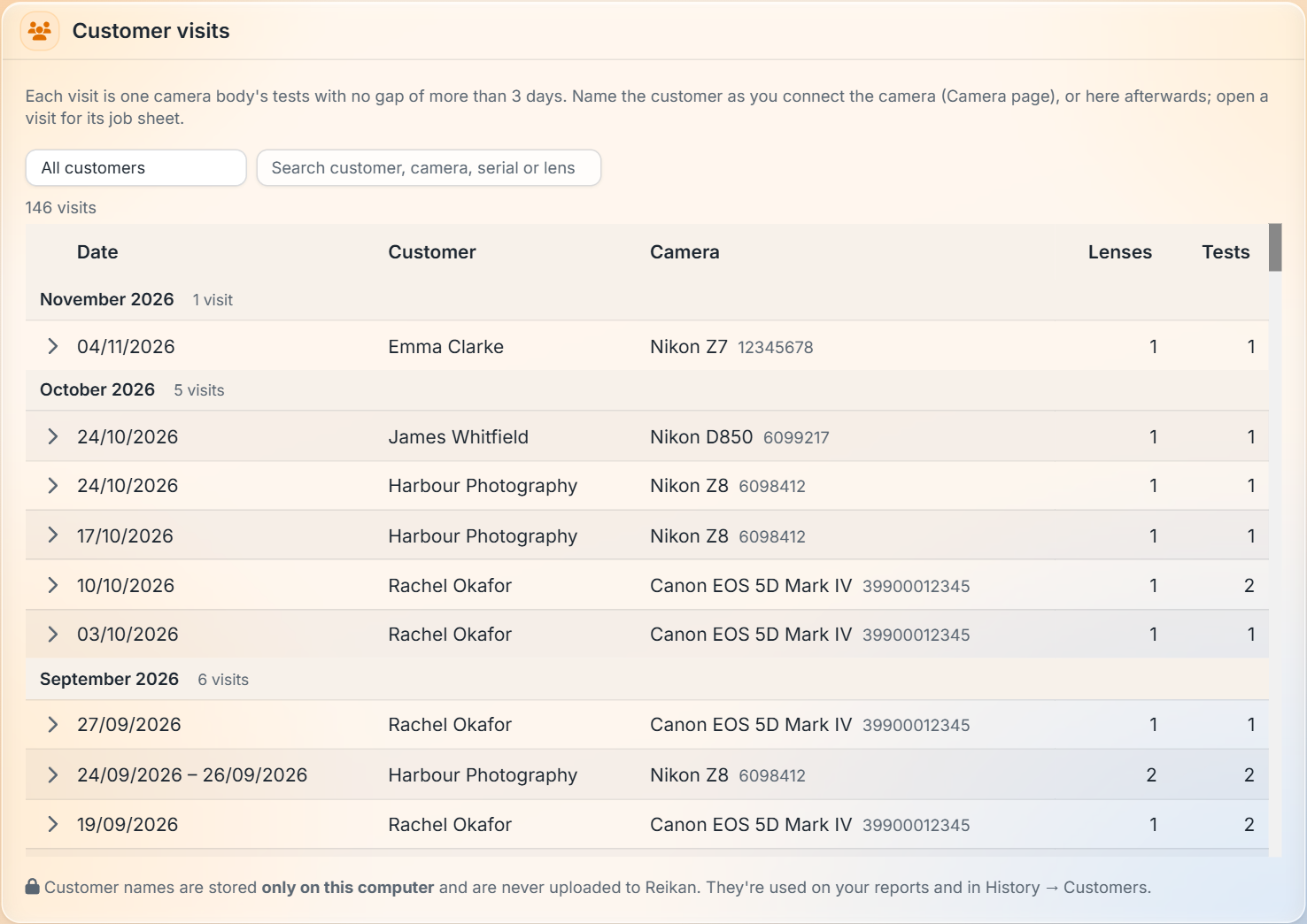
A visit is one camera body's tests with no gap of more than 3 days, so a camera tested over a couple of days is one visit, and the same camera coming back next month is a new one. All the lenses tested on that body during the visit are included.
- Visits are grouped by month, newest first.
- Choose a customer from the list at the top to see only their visits, or search by customer, camera, serial number or lens.
- Click a visit to open it. From there you can set or change the customer name (or Clear it), create the job sheet, or open Camera in Analysis to see that body's history in Kit History and Analysis.
Job sheets
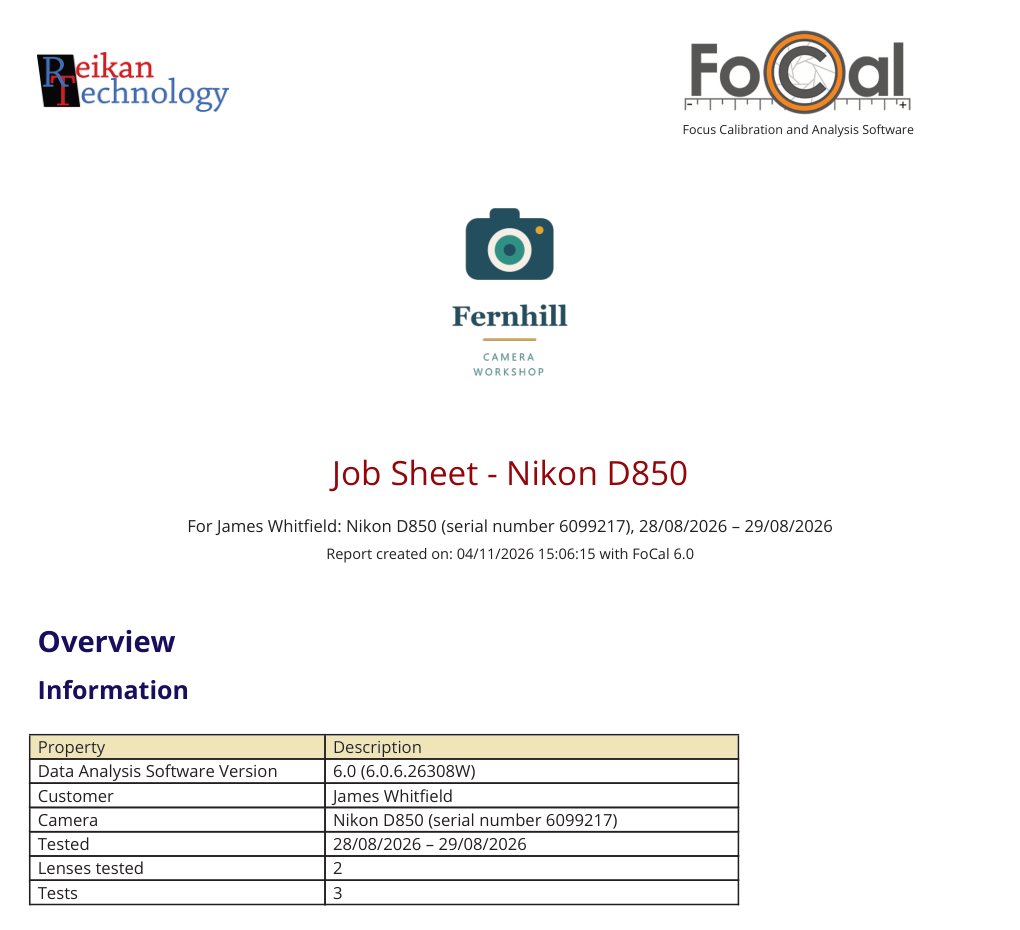
A job sheet is a PDF summary of one visit to give to the customer. It shows:
- the customer, the camera and its serial number, and the dates of the visit
- At a glance: one row per lens (and per zoom end), with the best AF fine-tune from the latest calibration, the latest AF consistency, and the CalCheck result from the first check to the last
- every test run on each lens during the visit, with its result
Your logo on reports
To put your own logo on job sheets and every other PDF report, go to Settings › Commercial and click Change Logo...:
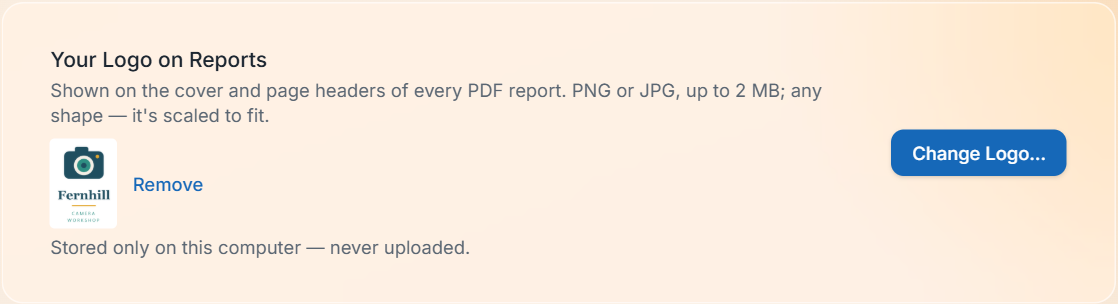
Use a PNG or JPG of up to 2 MB. Any shape works, as it's scaled to fit. The logo appears on the cover and in the page headers. Like customer names, it's stored only on your computer.
Backups and customer names
Customer names are personal data, so they're left out of history backups unless you choose to include them. In History › Settings › Backup / Restore, turn on Include customer names in backups:
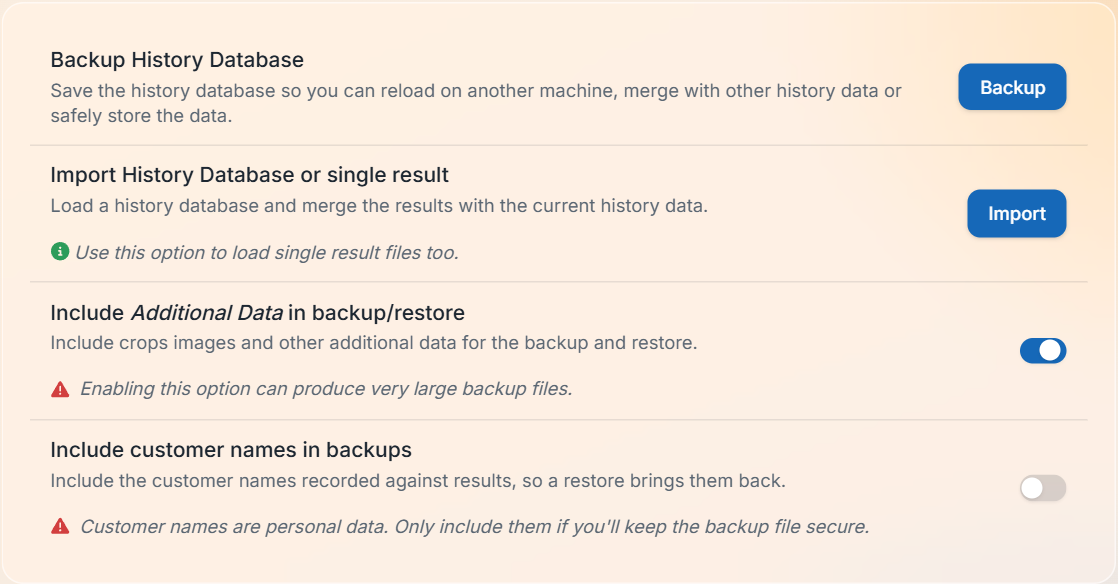
When you restore a backup, the customer names come back only if the backup included them. If you include them, keep the backup file secure.
For more about the history, see History.