Focus Calibration
Finds the best AF Microadjustment value for each lens. The camera won’t let FoCal set it over USB, so you change it when FoCal asks.
AvailableYes: FoCal finds the best AF Microadjustment value for each lens.
The EOS 5DS doesn’t let FoCal change AF Microadjustment over USB, so FoCal tells you the value to set on the camera when it needs it (User Assisted Mode), with separate wide and telephoto values for zoom lenses.
And FoCal can check the rest of your kit.
Supported in FoCal 2.0 and later, over Micro-USB (USB-3). Tests: Calibration Check, AF Consistency, Aperture Sharpness, MultiTest, Stabilisation Test and Dust Analysis.
And 47.2% would improve significantly. From calibration results FoCal users have shared with FoCal IQ.
You don’t know how a used EOS 5DS has been treated. Cameras and lenses get knocked, drift and wear, usually gradually. FoCal shows you where yours stands.
Any AF Microadjustment values already on the camera were set by someone else, for their lenses. FoCal finds the right value for each of yours.
AF Consistency shows how repeatable the autofocus is, and Aperture Sharpness how sharp each lens is across its apertures.
Dust Analysis counts the dust spots and shows how much they matter, before you pay for a clean.
With FoCal Pro, a regular Kit Health Check tracks every result, so you’ll see if anything changes.
Finds the best AF Microadjustment value for each lens. The camera won’t let FoCal set it over USB, so you change it when FoCal asks.
AvailableA one-click check of your EOS 5DS and lens. In a minute or so it shows whether your kit is working as it should.
AvailableHow repeatable is the EOS 5DS’s autofocus? Defocus between shots in one or both directions and see.
AvailableWhat happens to sharpness as you change aperture, and which aperture is the sharpest.
AvailableA two-dimensional view of the lens: focus position across the aperture range, showing any focus shift.
AvailableHow much does stabilisation really help? See the quality change as the shutter speed slows.
AvailableCount the dust spots on the sensor and see how much they matter, before you decide on a clean.
AvailableThis feature is not yet available for the EOS 5DS.
Not availableCalibration Check (AF System Check) is free in FoCal Mobile.
From calibration results FoCal users have shared with FoCal IQ: how far each EOS 5DS and lens was from the best AF Microadjustment value before FoCal tuned it.
76.9%
of lenses would benefit noticeably from FoCal calibration, and 47.2% would improve significantly.
Source: FoCal IQ: EOS 5DS (EF mount), 1,725 results.
 Why your EOS 5DS needs it · an illustrated guideYour DSLR doesn’t measure focus where it takes the pictureHow a DSLR focuses, what goes wrong, how to fix it, and the evidence from FoCal users.Read the guide
FoCal controls the EOS 5DS over USB. Use the cable that came with the camera or a good-quality one, and avoid extension cables: a poor cable is the first thing we suggest changing if FoCal is unreliable.
When you first connect, allow access to the Photos Library and to Removable Media. FoCal needs both to talk to the camera.
In FoCal, open then , expand and click . Restart FoCal and it will ask again.
Press and go to the tab. Select and press .
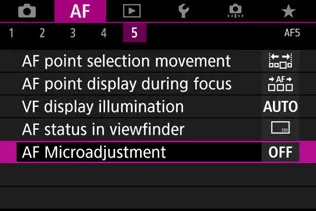
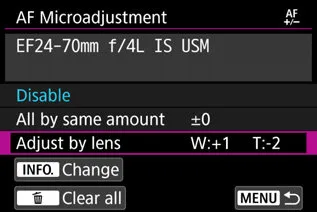
FoCal sets a value for each lens, so select , then press .
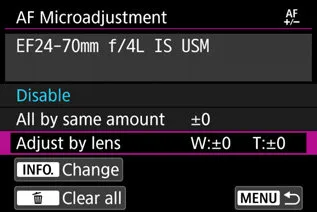
For a prime lens, change the value on the screen.
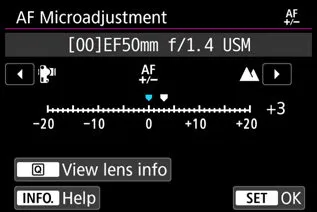
For a zoom lens, select (wide) or (telephoto), as FoCal asks, and press . Then change the value with the rear dial.
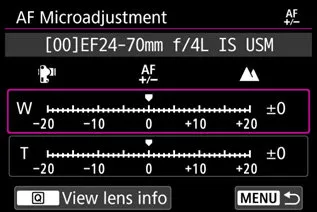
Press to save the value, then to go back. The values you chose are shown.
Use the camera hotkey: see User Assisted Mode.
FoCal controls almost every setting it needs on the EOS 5DS, but the camera doesn’t let it change AF Microadjustment over USB. During calibration or MultiTest, FoCal asks you to change it a few times.
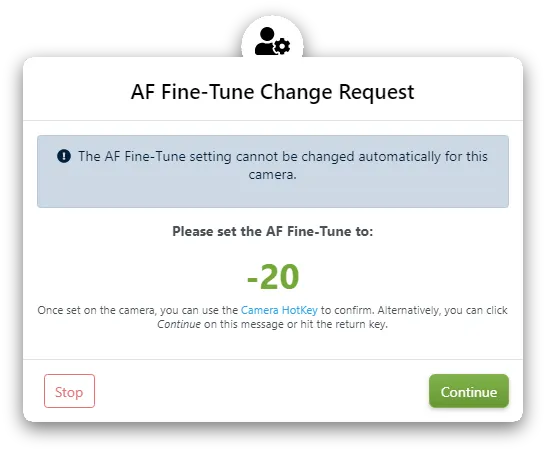
While FoCal’s request is on screen, the camera controls work. Voice prompts are on to start with, so your computer reads out the change you need.
Press to open the menu, to select AF Microadjustment and to change it. Set the value and press .
The menu remembers where you were, so after the first time it’s quick.
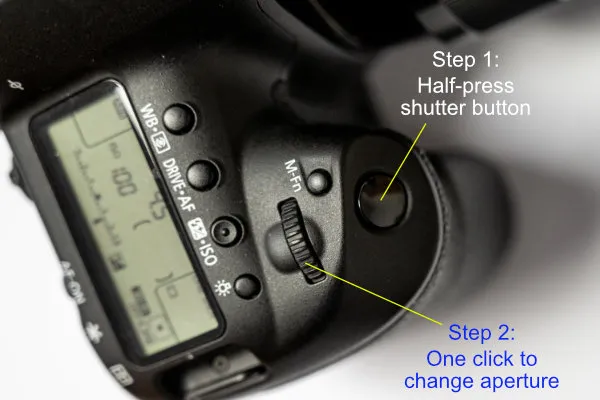
Half-press the shutter button to go back to shooting, then turn the aperture or shutter speed dial by one click. FoCal sees the change, waits a moment for the camera to settle, puts the setting back and carries on.
Ground-floor rooms vibrate less when people move about or traffic passes, and vibration affects the results.
Keep it flat so it can’t move. A FoCal Hard Target is what we use for all our development and testing.
Avoid fluorescent and LED lights, which can flicker in a way you can’t see but the camera can, and changeable daylight. FoCal copes with small changes in light, not big ones.
If your tripod has a hook under the centre column, hang something heavy from it. With big lenses, mount the lens’s tripod collar, not the camera.
The Target Distance Tool in FoCal tells you how far from the target to be, with or without the camera connected.
Target Setup, FoCal’s guided setup, checks the position, light and settings before a test. More in the FoCal help.
Low batteries can make tests fail or the camera behave strangely.
Grips add vibration on a tripod.
Roughly is fine: Target Setup confirms the position.
This stops stray light getting in through the viewfinder and changing the exposure.
If the EOS 5DS has a photo/video switch, set it to Photo.
If the camera lets you limit its options, allow Aperture Priority and Manual, Spot and Matrix/Evaluative metering, and all apertures, shutter speeds and ISO values.
Most FoCal tests use it. FoCal asks if a test needs something else.
Set the autofocus mode to : a half-press of the shutter button locks focus and then stops.
No automatic point selection: you should see one fixed AF point, in the centre.
FoCal may use the lens’s whole focus range, so set any focus limiter on the lens to off or the full range.
Turn off any stabilisation on the lens: it can make the results less accurate.
With the EOS 5DS, FoCal Plus gives you autofocus calibration and Calibration Check. FoCal Pro adds the rest of the Kit Health Check, with trends over time.
Quick and simple autofocus tuning.
Tune, analyse and compare. Everything you need for a Kit Health Check.