Focus Calibration
On this page
Focus Calibration finds the best autofocus adjustment value for your camera and lens (AF Microadjustment, AF Fine Tune and so on) at the touch of a button.
The result applies to this camera and lens, at the focal length and distance you tested.
Opening Focus Calibration
With a camera connected, choose Camera > Focus Calibration from the menu bar.
To analyse images you have already taken, choose File > Focus Calibration (if file mode is available with your licence).
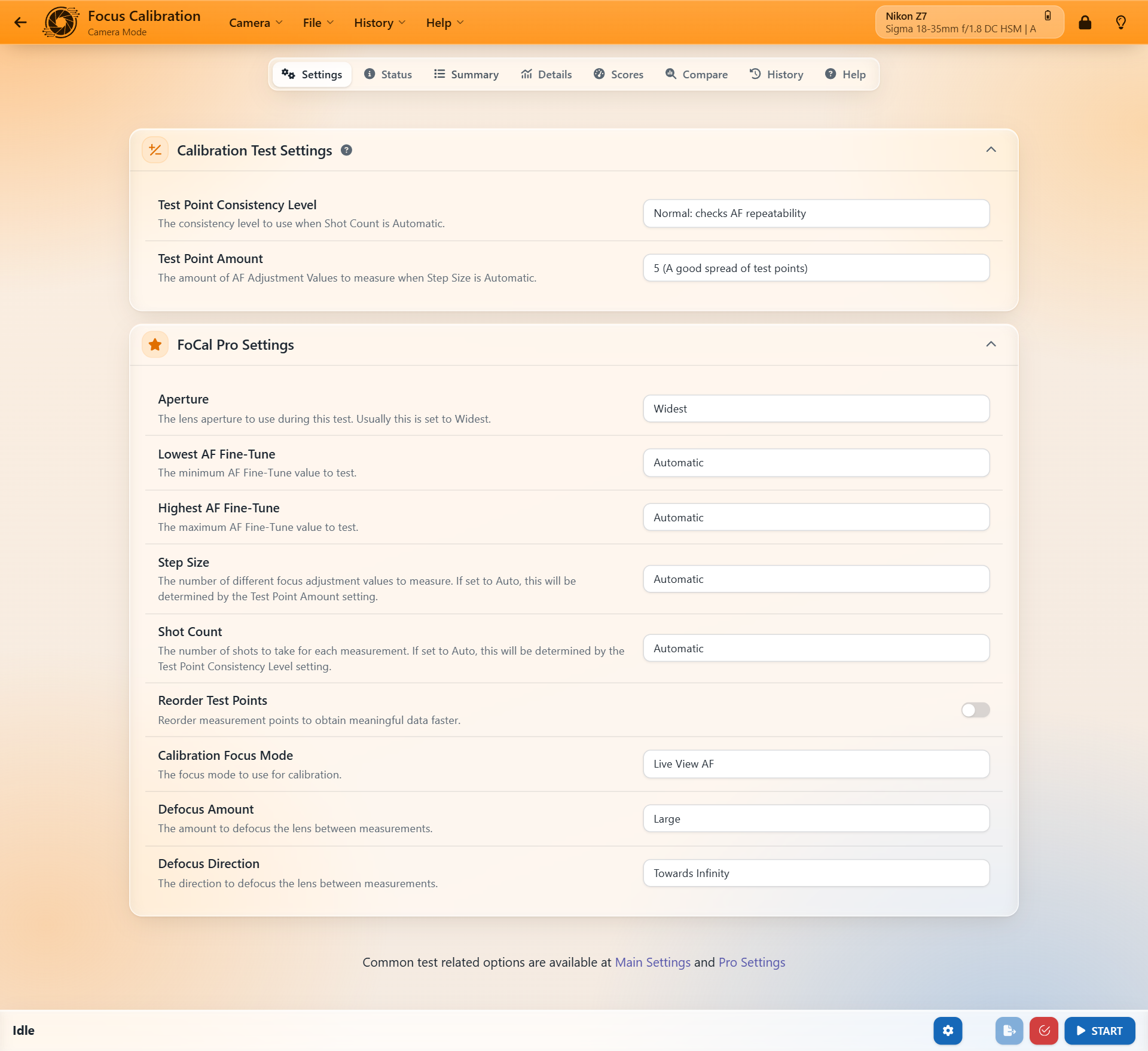
Set up the camera and target correctly before you calibrate. Target Setup checks your setup automatically, and this page has all the information you need. Run Target Setup before the calibration, otherwise the results may not be accurate.
Zoom lenses
On cameras with separate wide and tele values (for example the Canon EOS 6D and 5D Mark IV), calibrate at the wide end and at the tele end of the zoom. In between, the camera uses a mix of the two values, so to test at a mid-zoom focal length Focus Calibration has to set both ends to the same value. FoCal warns you before the test starts, and afterwards it puts your wide and tele values back, or, on a camera where you set the value yourself, asks you to. The result applies only to that focal length and isn't set in the camera. To calibrate the lens, run Focus Calibration at the wide end, then at the tele end.
Cameras with one value for each lens (for example the Nikon D850, D810 and Z 6) have one value for the whole zoom.
Running the calibration
Press Start, either on the Status tab or on the control bar at the bottom of the window.
As the calibration runs, the screen updates with each shot:
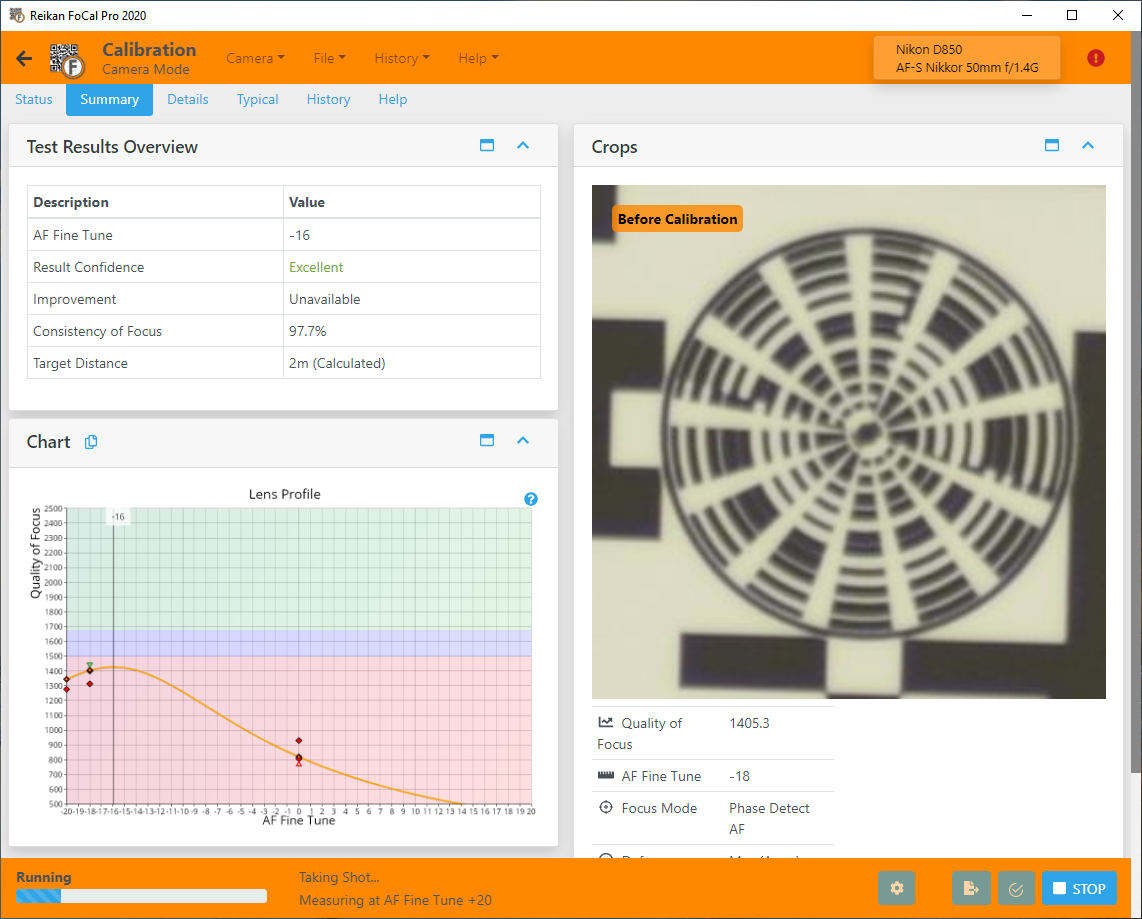
Cameras where FoCal sets the value, and cameras where you do
On many cameras FoCal changes the AF fine-tune setting for you during the test. On others it can't, so it tells you each value to set on the camera, then checks the next shot to make sure the change took. See the camera support list for your camera, and this page for details.
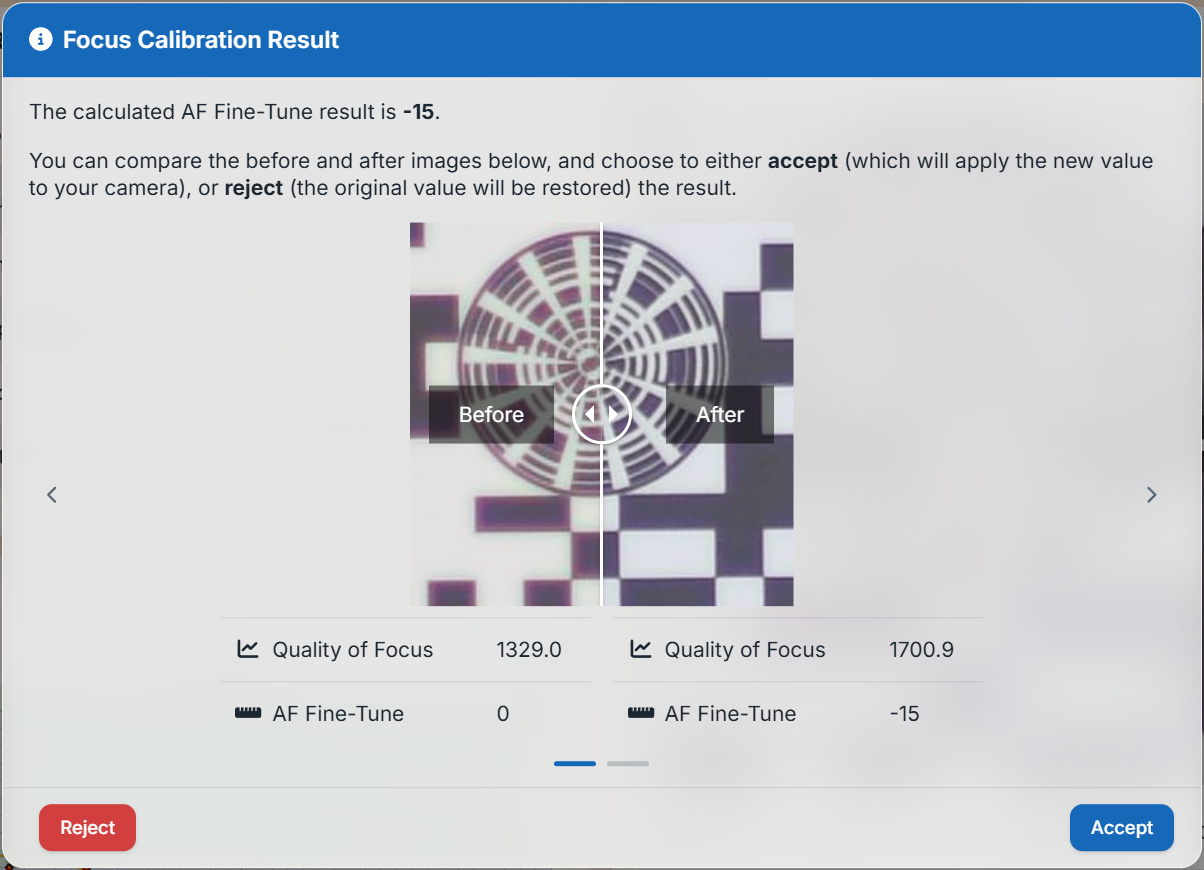
When the calibration is complete, FoCal shows the result in a message like this:
Reviewing the results
You can look at the charts and results while the calibration runs, but they may change until the test has finished.
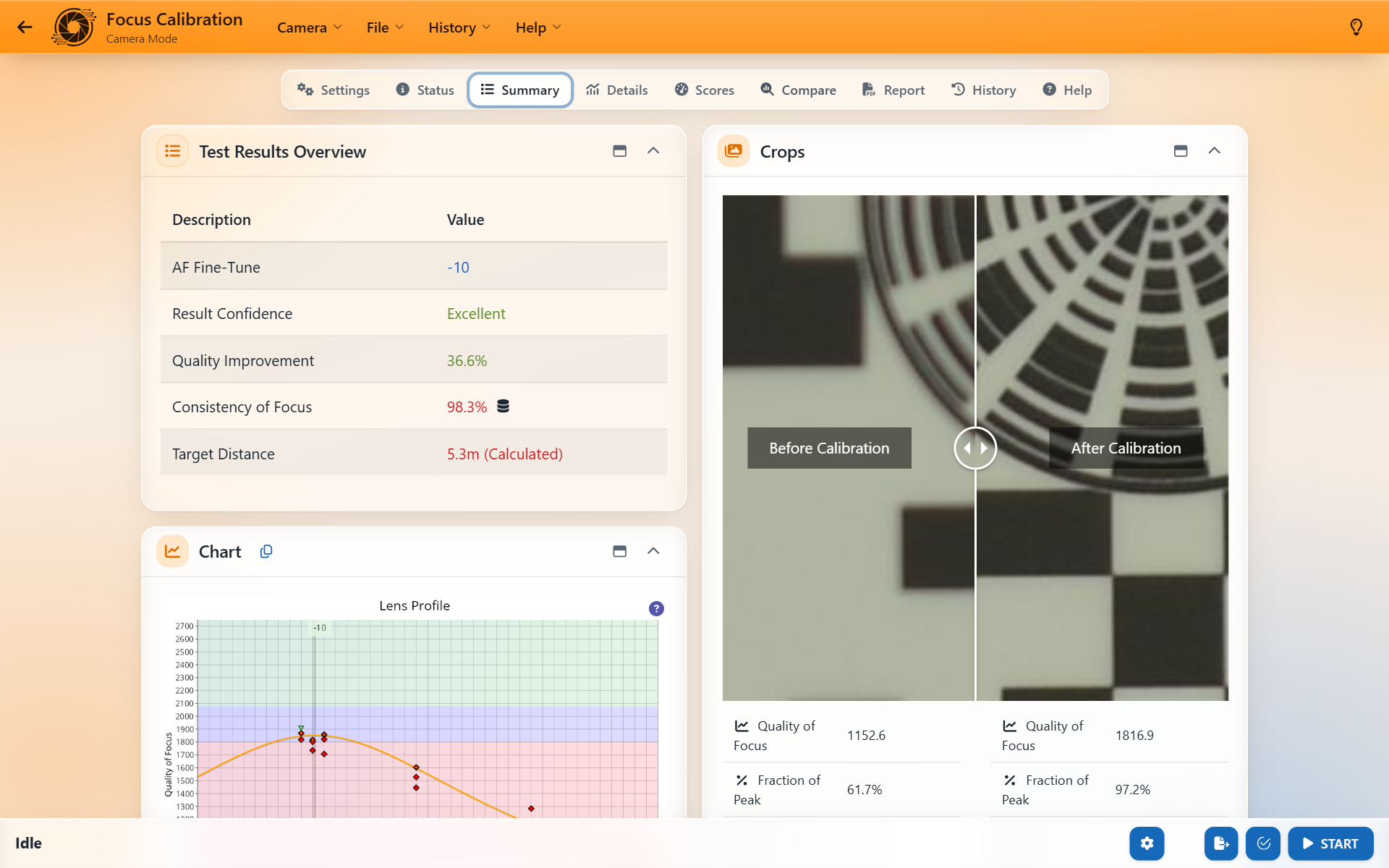
The Lens Profile chart shows how sharp the lens is across the Focus Adjustment range. The horizontal axis runs from -20 to +20. The vertical axis is sharpness, so the higher a marker, the sharper the image.
The calibration result is the value where the image is sharpest. In the screenshot above, this is around -16, shown by the black vertical line. Set this value in your camera.
The help button with each chart opens the detailed help page for that chart.
The test tabs
Some tabs only appear when the test is not running, and the Details, Scores, Compare, Report and History tabs need FoCal Pro.
Settings tab
The settings for this test. The defaults suit most people. See Settings – Calibration.
Status tab
The current state of the test and the settings it will use. This is the tab you see when you open the test. See Status Tab.
Summary tab
The main results (the AF fine-tune result, Result precision, Quality Improvement, AF repeatability, Tolerance and Target Distance), the Lens Profile chart, and crops of the target before and after calibration.
Details tab
- Charts showing different aspects of the measurements (see below). Choose a chart from the list.
- All the results for the test.
- A list of every shot, and the capture settings for the shot you select.
- Crops of the image, including the analysed region of the selected shot.
Charts
Focus Calibration offers the following charts (click a link for details):
Lens Profile - Focus Calibration
Historic Results - Focus Calibration
Focus Consistency - Focus Calibration
Astigmatism Factor - Focus Calibration
Red-Blue Ratio - Focus Calibration
Red-Blue Quality - Focus Calibration
Result Convergence - Focus Calibration
Image Motion - Focus Calibration
Front/Back Focus - Focus Calibration
AF/Capture Time - Focus Calibration
Image Motion (2D) - Focus Calibration
Scores tab
Each result as a score from 0 to 100, grouped into Overall Results, Quality and Optical Quality. Where FoCal Comparison Data is available, the score shows how your result compares with other users of the same camera and lens.
Compare tab
How your results compare with other users of the same camera and lens, using FoCal Comparison Data. See Compare Tab.
Report tab
Save a PDF report of your results, or a CSV file of the numerical results for your own analysis. See Report Tab.
History tab
Previous tests with the same camera and lens, with a summary of the results. Double-click an entry to open it, so you can see how your equipment has changed. See History Tab.
Help tab
An overview of the test and how to run it, with a link to this online help.