History
On this page
FoCal keeps the results of every test you run on your computer, from every version of FoCal, so your history may already go back years. With FoCal Pro, the History menu lets you review, analyse and manage these results.
The History menu
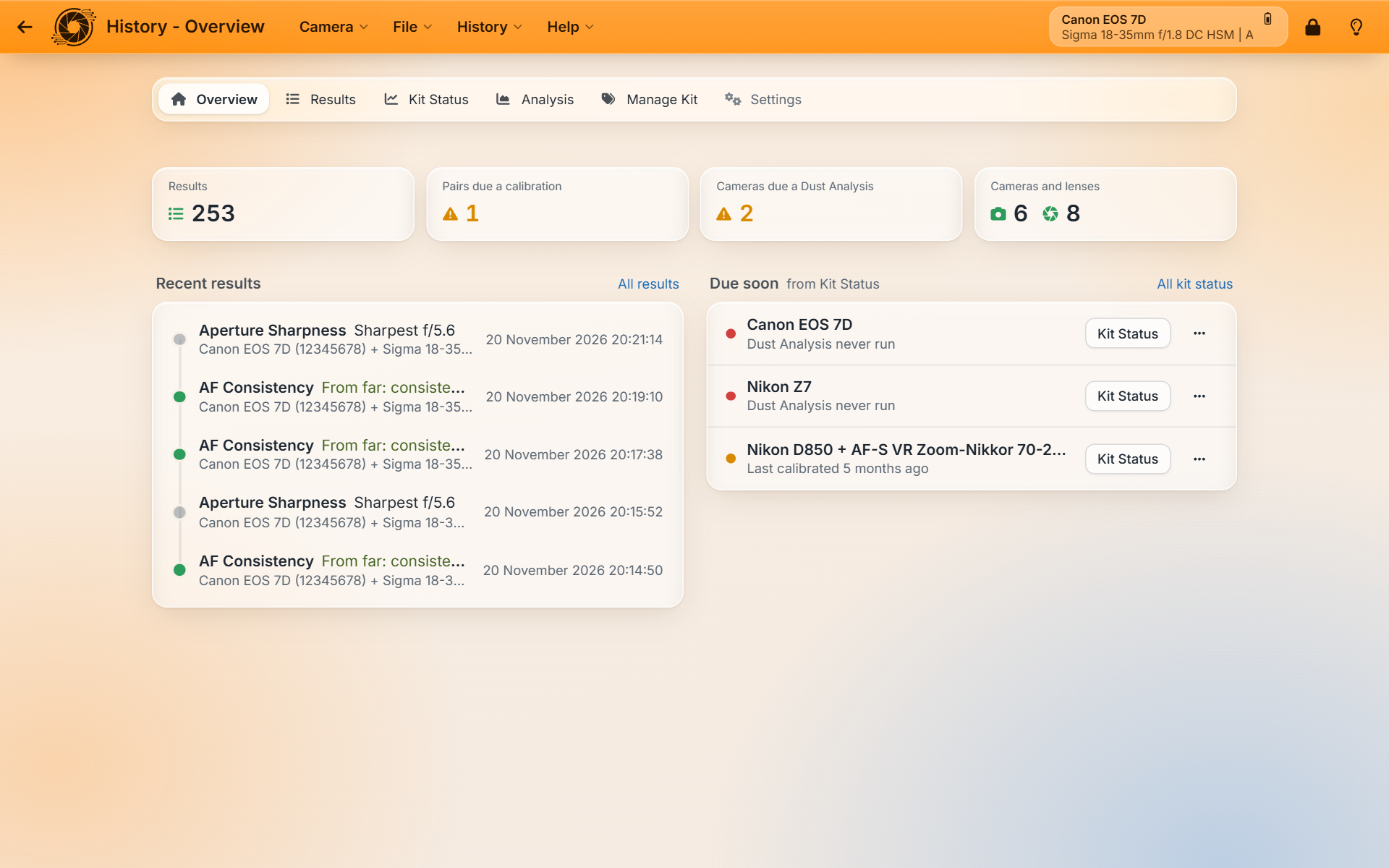
- Overview: how many results you have, what's due for calibration or a dust check, and your latest results as a timeline.
- Results: browse, search, open, export and delete your past results.
- Kit Status: when each camera and lens was last calibrated, which are due again, and the last Dust Analysis for each camera.
- Analysis: how calibration, AF consistency and sharpness have changed over time, and whether a camera body seems to be offset.
- Manage Kit: your cameras and lenses. Retire old kit, add notes and tags, and export PDF summary reports.
- Customers (FoCal Commercial): tests grouped into customer visits. See Using FoCal Commercial.
- Settings: history settings, backup and restore, and database information.
- Import from Mobile: import results exported from FoCal Mobile Pro.
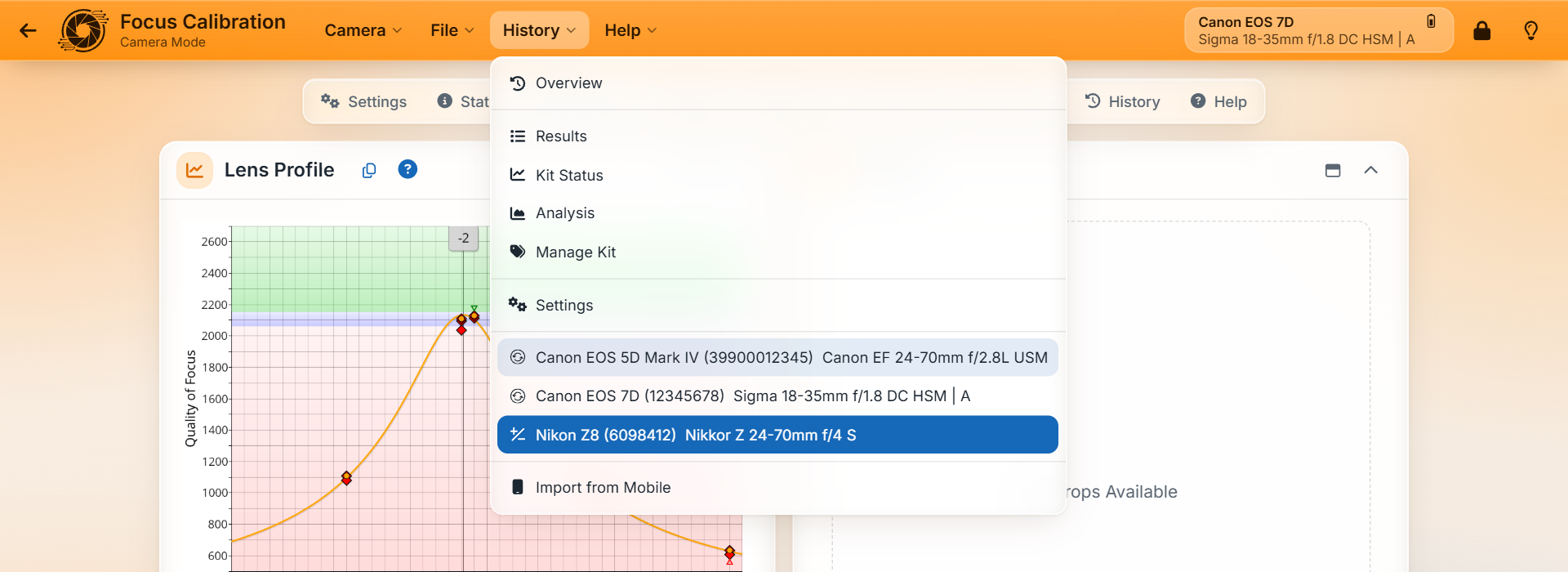
Every History page has the same menu (down the side when the window is wide enough, as tabs across the top otherwise), so moving between Results, Kit Status and Analysis is one click. The menu also lists any results you've opened, so you can switch between them.
Results
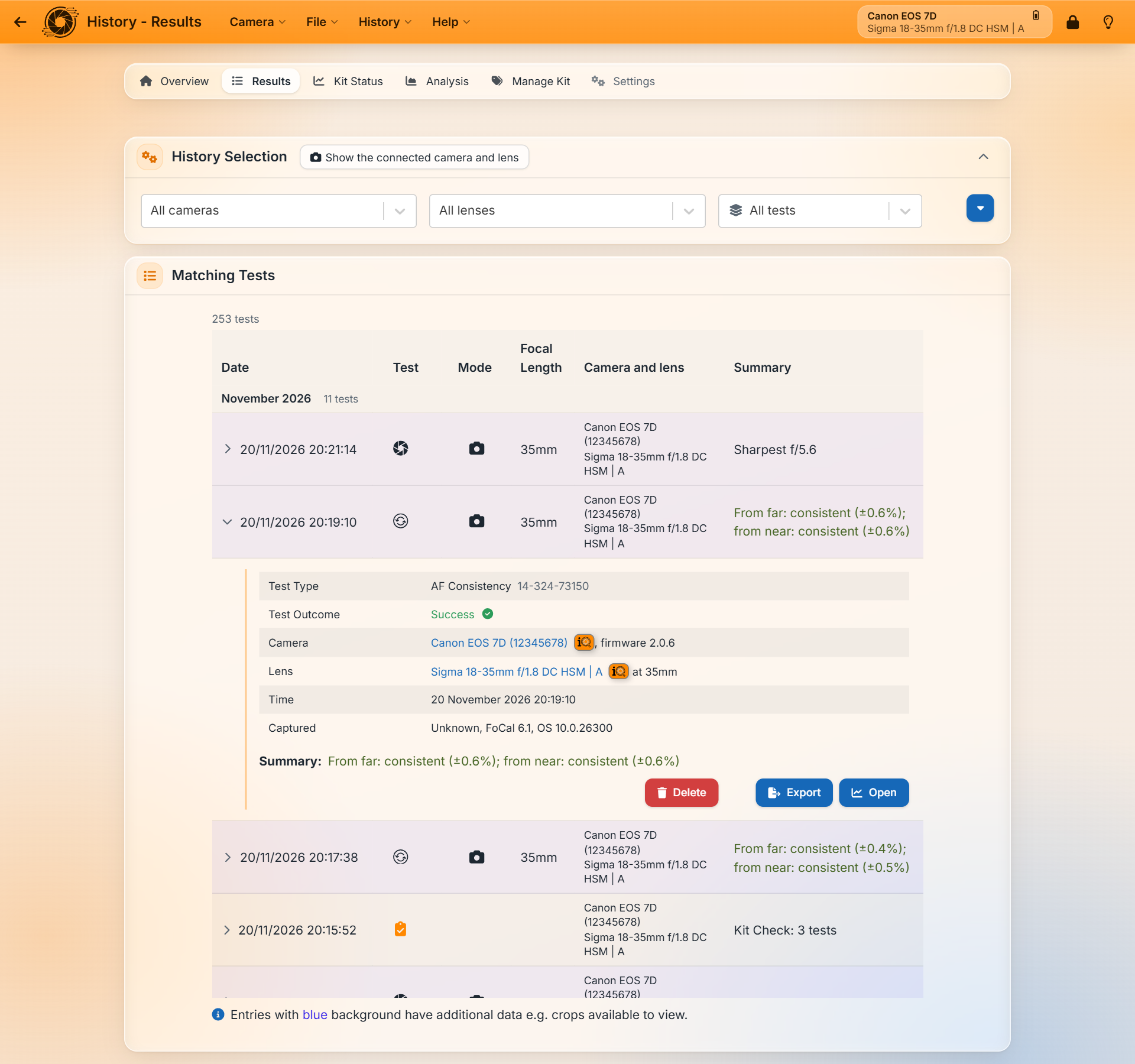
History › Results lists your results. Choose a camera and lens in the History Selection card to see their tests. To find a particular test, use Show extra search options, or enter its Test ID.
With a camera connected, click Show the connected camera and lens in the title bar to pick that camera and lens. The button only appears when it would change the selection. If the lens has no results on that camera, FoCal picks All lenses. You can also go straight to the results for the connected camera, lens, or both from the History menu in the Connected Camera panel on the Camera page (see FoCal User Interface Overview).
Click the arrow by a result's date to show its details under it, and click it again to hide them:
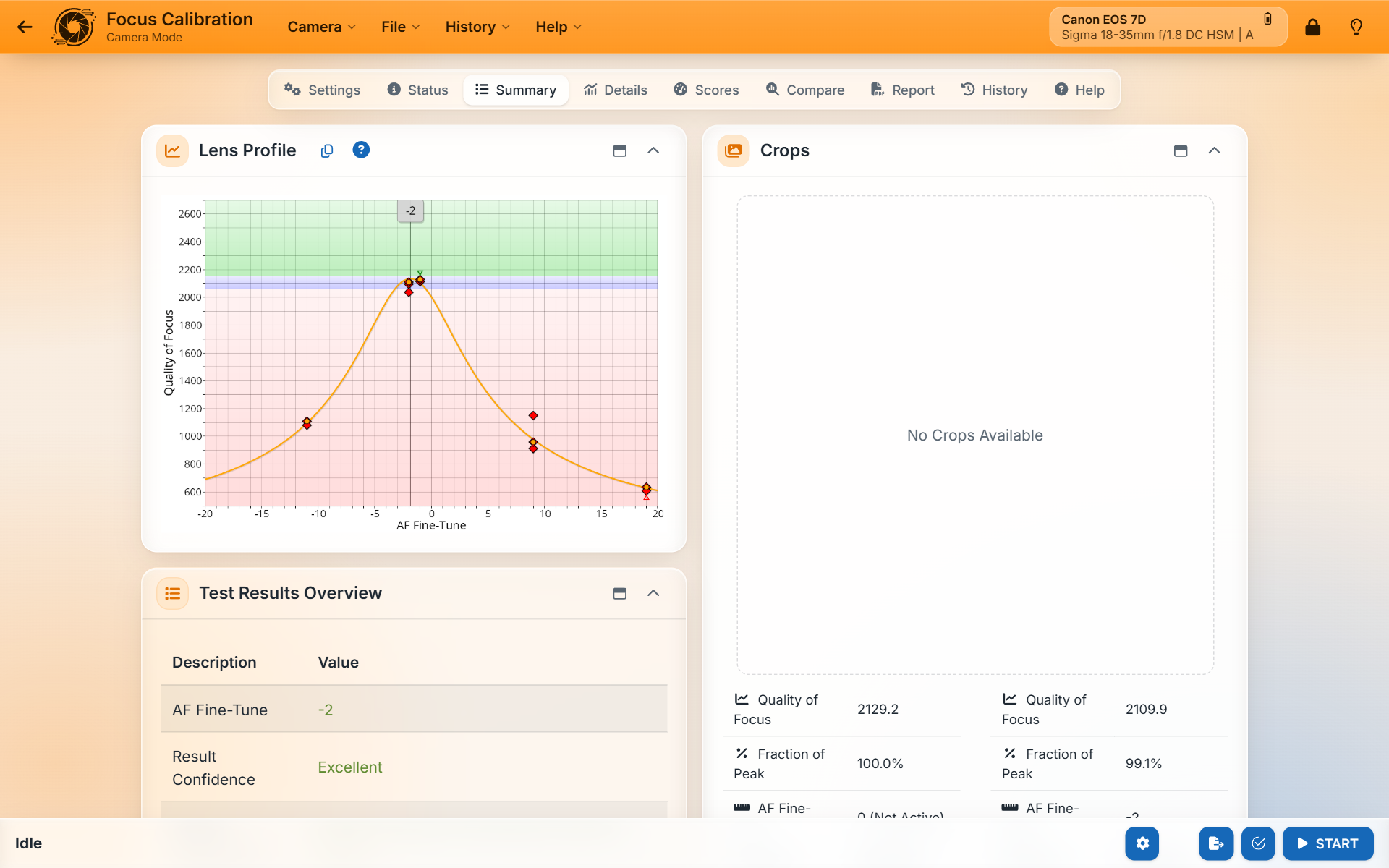
Double-click a result, or click Open in its details, to open the test and review it:
A Kit Check shows as one row: click it to show or hide its three results.
You can open several results and switch between them from the History menu:
In a result's details, use Export to save it to a file, and Delete to remove it.
Kit Status
History › Kit Status shows the state of all your kit at a glance: when each camera and lens was last calibrated, which are due for calibration again, and each camera's last Dust Analysis. Maintenance Watch highlights kit whose results are changing.
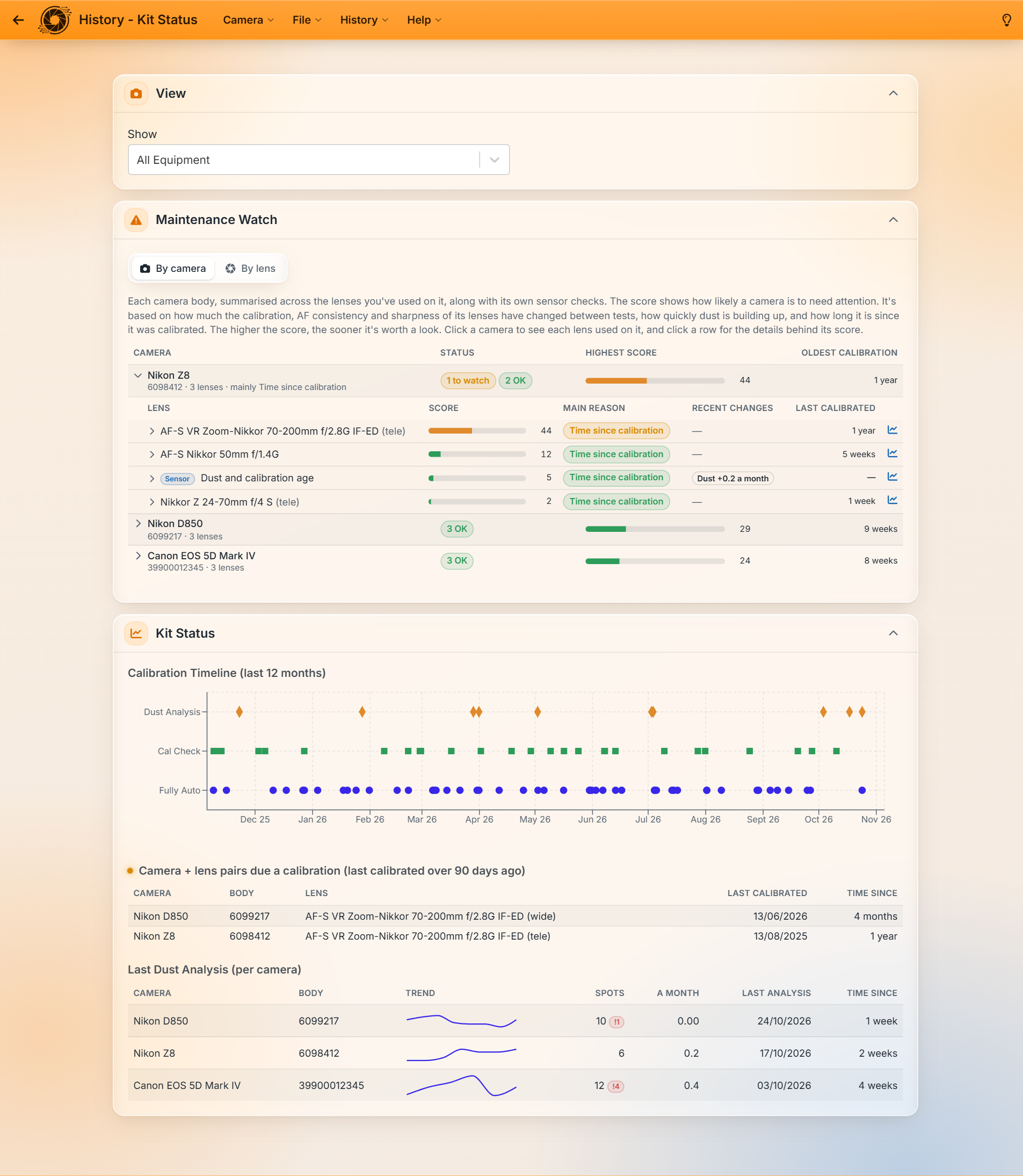
You can change when a calibration counts as due, and the Maintenance Watch thresholds, in History › Settings.
Maintenance Watch (FoCal Pro)
Each camera and lens gets a score from 0 to 100 for how likely it is to need attention, from what your tests have measured: changes in calibration, AF consistency and sharpness, what the latest AF Check found, and how quickly dust is building up on a camera.
- Green: nothing measured looks wrong.
- Due a check: calibrated longer ago than your Stale Calibration Threshold, but nothing measured looks wrong. Time alone doesn't make a lens look bad; it means FoCal doesn't know how it is now. An AF Check will tell you.
- Amber: something measured has changed, such as the best AF fine-tune moving or a Significant AF Check. Worth a look.
- Red: at least two measured signs agree. Check it soon.
Not tested lately: kit you haven't tested for over a year, while you've tested other kit since, is folded away at the bottom. If you no longer use it, click Retire camera or Retire to hide it across FoCal (History › Manage Kit brings it back). Testing it again puts it back in the list.
With FoCal Commercial, if you calibrate customers' kit, Maintenance Watch follows only the cameras you mark as your own; see Using FoCal Commercial.
Analysis
History › Analysis shows how your results have changed over time: the best focus adjustment, AF consistency and sharpness. It also compares lenses across camera bodies, to show whether a body seems to be offset. Where FoCal Comparison Data is available for a single camera and lens, the charts show the range typical for other users (labelled Typical).
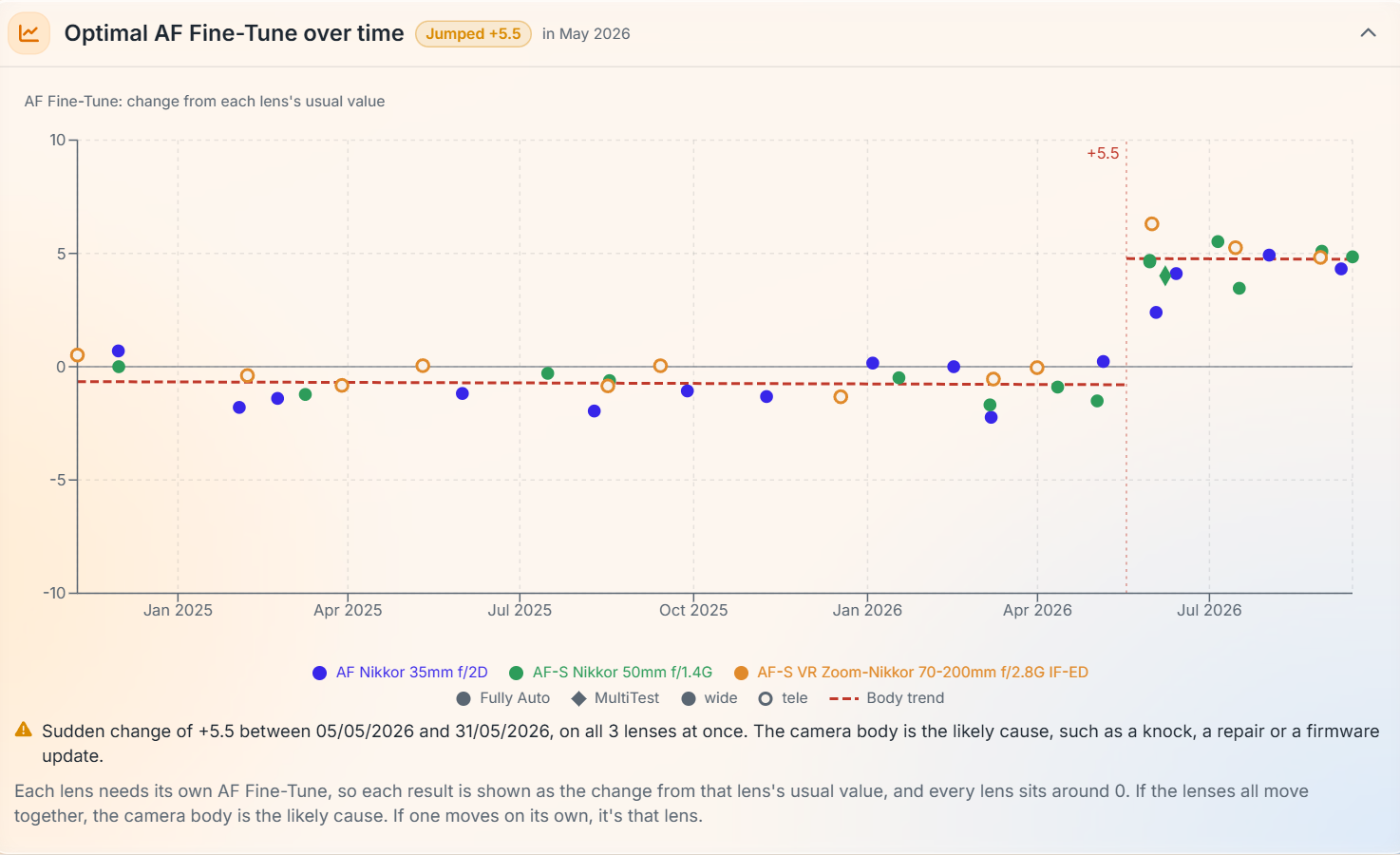
You can save a PDF summary of a camera, a lens, or a lens on one camera with Export PDF.
Backup and restore
In History › Settings, open the Backup / Restore tab:
- Backup: save your history database, to keep it safe or move it to another computer.
- Import: load a history database, or a single result file, and merge it with your current history. Nothing in your current history is lost.
Turn on Include Additional Data to include crop images and other extra data. This can make backups very large.
With FoCal Commercial, customer names are only included if you turn on Include customer names in backups (see Using FoCal Commercial).
Importing from FoCal Mobile
With a Pro subscription, FoCal Mobile can export a single test or all your results. Send the file to your computer (for example by email, AirDrop or cloud storage), then choose History › Import from Mobile and click Import.