FoCal Mobile Debug Logging
Introduction
FoCal Mobile has a logging feature for capturing information about how the software is running, which can aid in diagnosing issues with the application.
The contains only information relevant to the operation of the software, although this may include personally identifiable information such as camera serial numbers.
Things to note:
- When logging is enabled, the software can behave differently, so you should only enable it when instructed.
- Log files can get quite large, and the logging will stay active across restarts of the application until you disable it. Make sure logging is switched off when not required.
Enable Logging
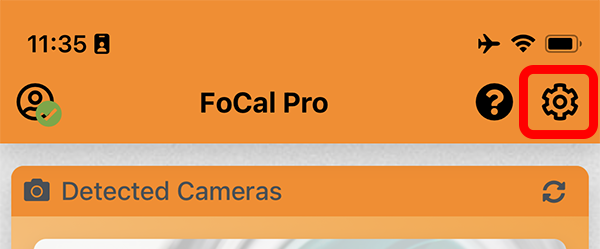
To enable logging, head to the Settings page with the button on the top-right of the screen:
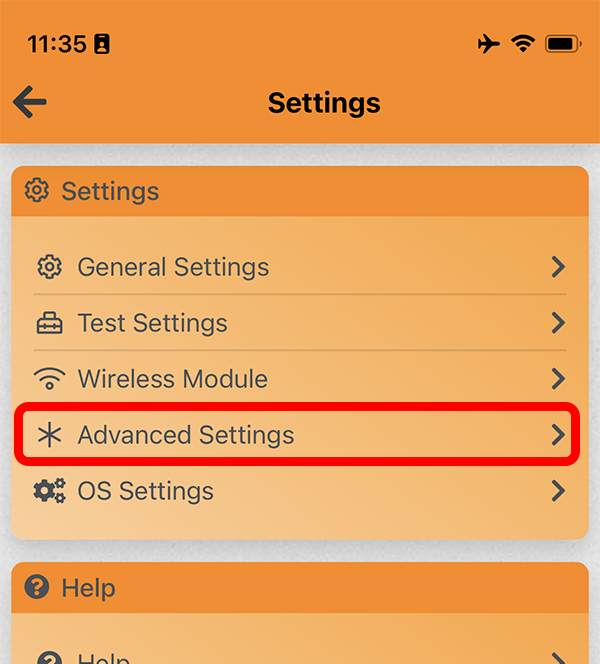
Choose Advanced Settings:
On this page, you will see the Enable Logging option. Tap the switch to turn it on.
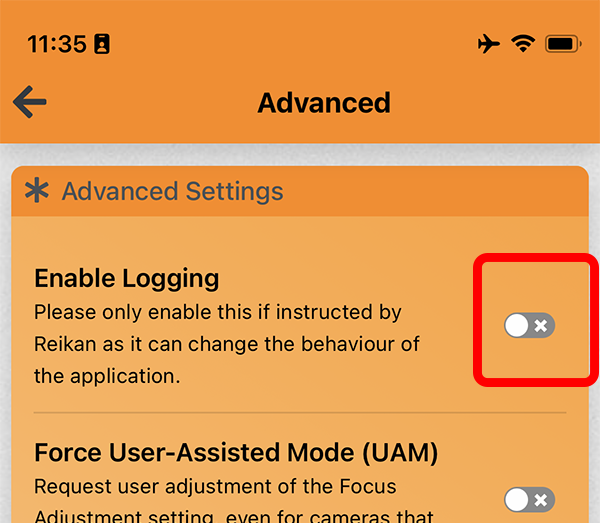
Logging will now start immediately, so anything you do from now on within the application will cause log information to be stored.
Note: Logging will stay active until you disable it.
Logging Indication
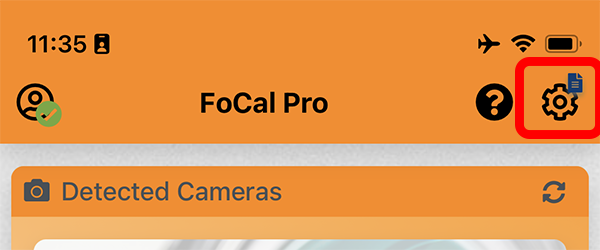
When logging is enabled, you will see a small blue file marker overlaid on top of the Settings button on the top bar of the application.
Disable Logging
To disable logging, simply head to Settings > Advanced and switch off the logging.
Accessing Log Files
Typically, we will ask you to enable logging, capture one or more logs, and then send the log files to us.
The location of the log files will depend on which mobile operating system you are using: