Accessing Log Files – Android
(For information on how to enable/disable debug logging, see FoCal Mobile Debug Logging)
Android has many different file browsers, and exactly how you find the log files will depend on which you are using.
These instructions are for the default Google Files application supplied with standard Android, as found on Google Pixel phones and many other devices.
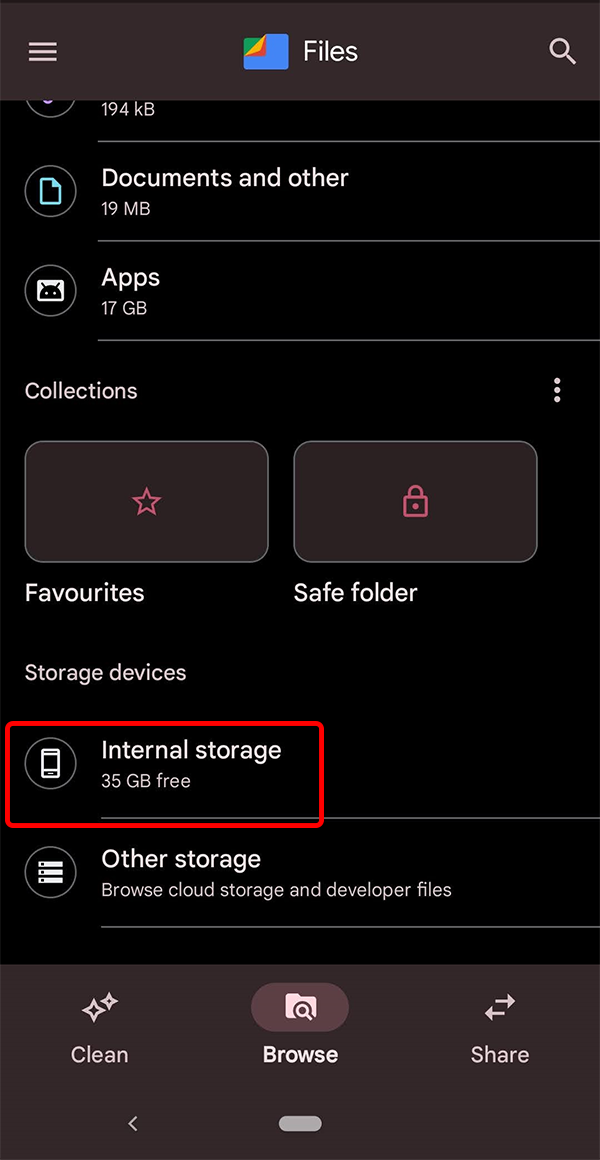
From within the application, scroll down and choose the Internal storage option.
Choose Documents within the Internal storage folder:
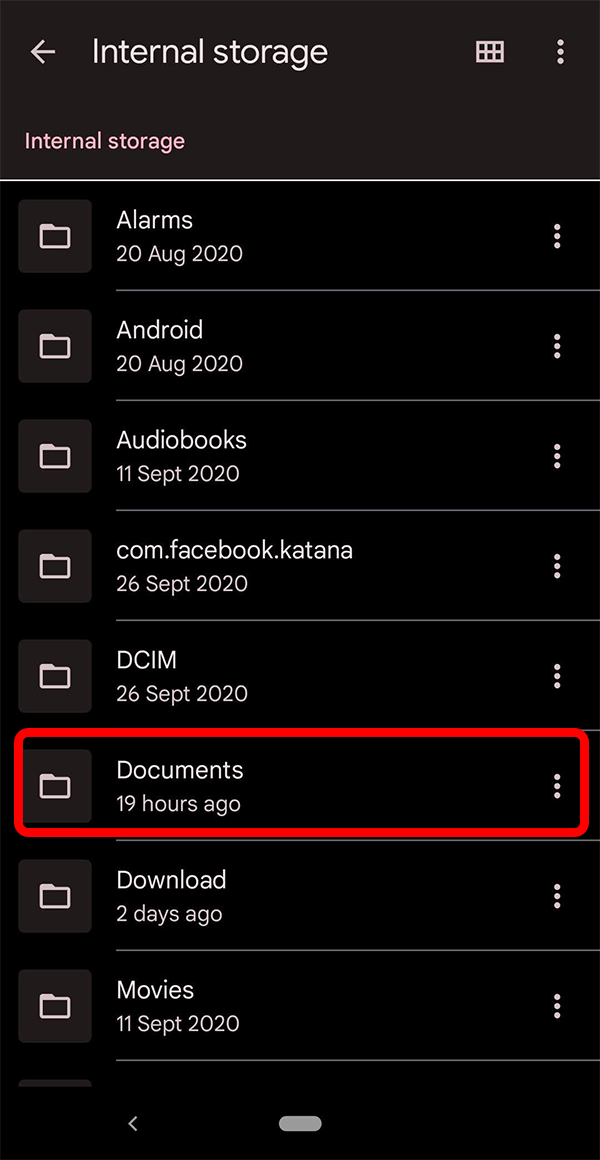
Note: you may see various “Documents” options in the Files app, but the one you need is inside Internal storage or equivalent. Other options are usually a special collection of all user documents on your devices, rather than just the files in a specific location.
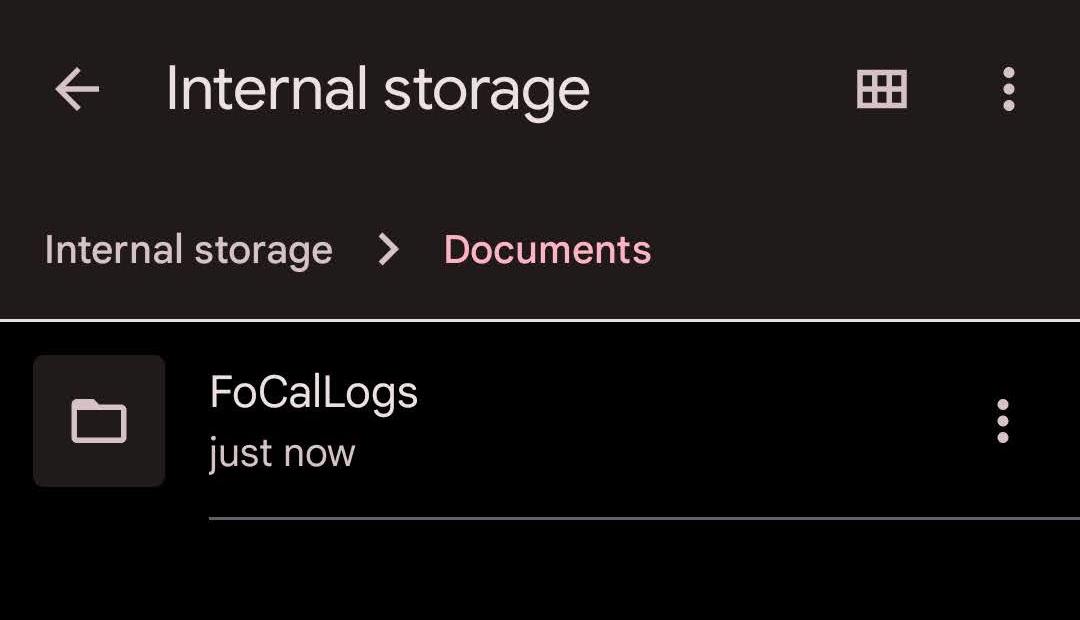
If you have the right place, you’ll find a folder inside called FoCalLogs:
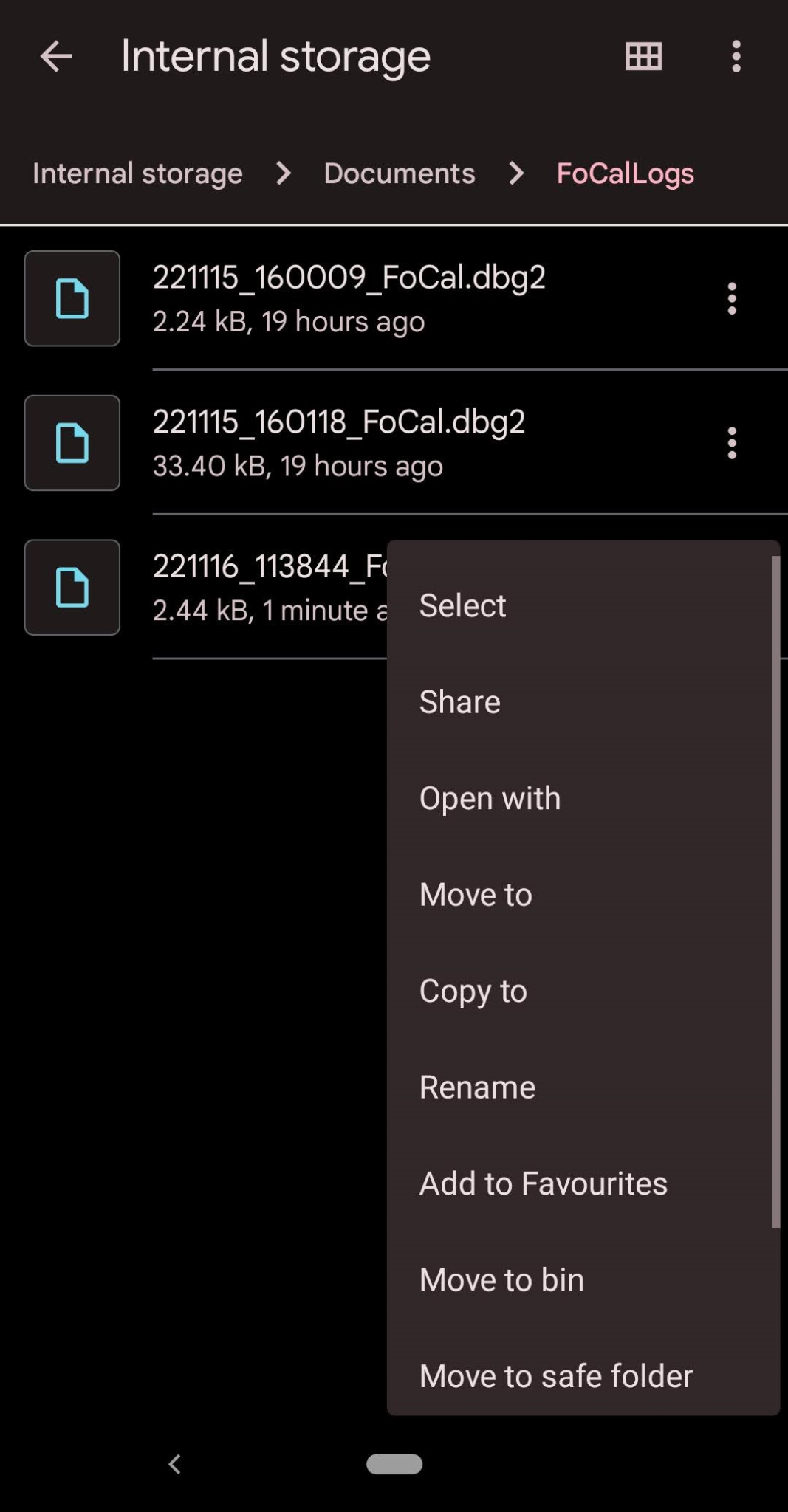
And inside this folder, you’ll find the log files:
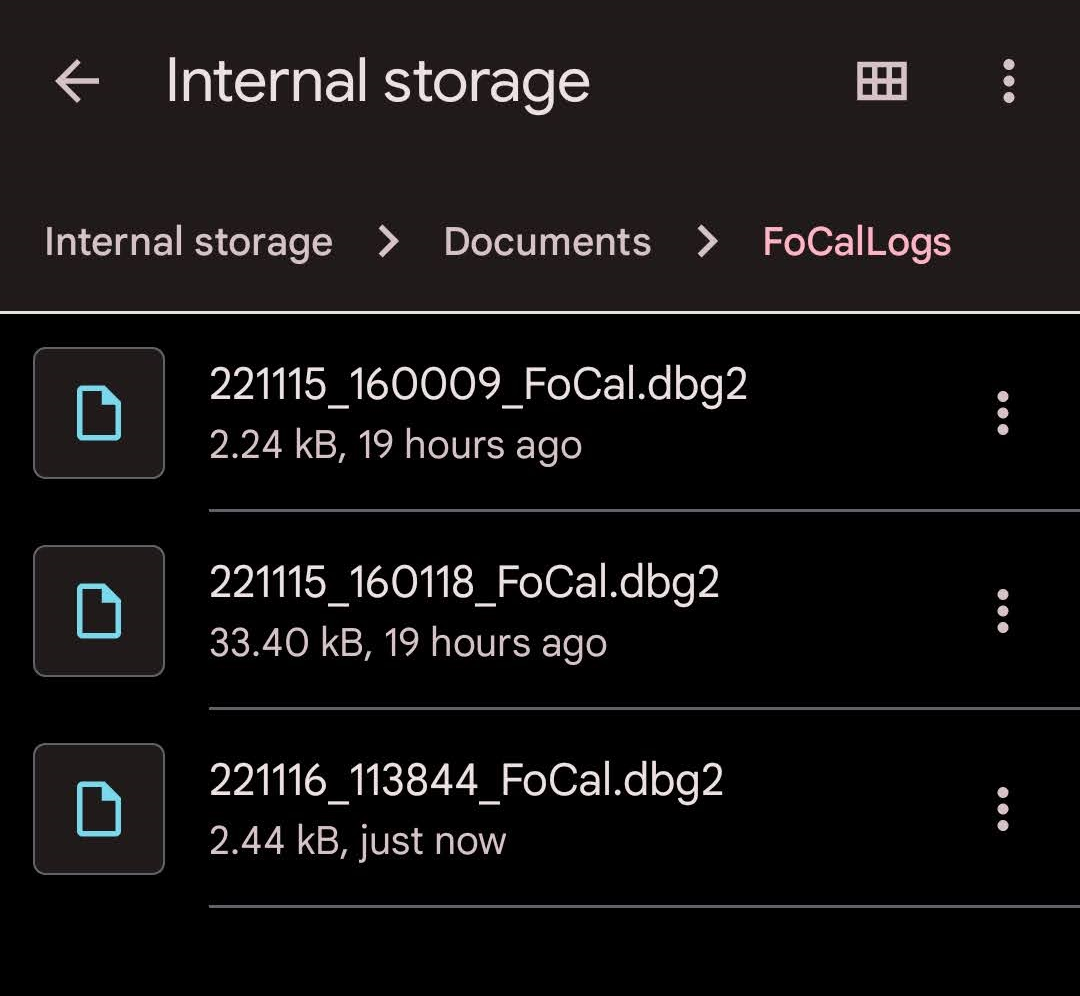
You can tap the three-dots to open the menu, giving you options to Share to email/files etc in order to transfer the files back to Reikan.